
Setting up Mixture to work with WordPress and Compass
Assuming you have Mixture and XAMPP (or similar local server) installed and your WordPress site is already working locally.
- Make sure there’s no existing
compassfolder orconfig.rbfile in your theme folder. - Start XAMPP (or other local server).
- Start Mixture.
- Click Open in Mixture and select your theme folder inside
wp-content/themes - Select your theme folder for the Preprocessor location.
- Enter your localhost URL for the Partner server address, in my case it’s
http://localhost
Mixture will now report errors. Here’s how to fix them.
Assuming you have the following file structure in your theme folder:
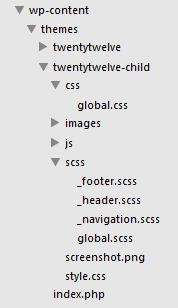
- A
style.cssin the root of the theme that only contains theme information header, an@importstatement for your “global” css file (that contains all your styles) and maybe also an@importstatement for your parent theme’s stylesheet if you are working on a child theme. Here’s an examplestyle.cssfor a child theme:
/*
Theme Name:     Twenty Twelve Child
Description:    Child theme for the Twenty Twelve theme
Author:         Ben Pearson
Author URI:     https://benpearson.com.au
Template:       twentytwelve
Version:        1.0
*/

@import url("../twentytwelve/style.css");

@import url("css/global.css");
- All your SCSS files are kept in the an
scssfolder. I have aglobal.scssfile in this folder that imports all the partials like_navigation.scss. Thisglobal.scsswill be compiled tocss/global.cssand then imported bystyle.css - All your CSS will the exception of
style.cssis kept/compiled in acssfolder. - All your images are kept in an
imagesfolder - All your javascript is kept in an
jsfolder
Open the mixture.json file that has been newly created in your theme’s root folder and make the following change:
"useCompass": true,
This will create a compass folder in your theme folder with a config.rb file inside it.
Now change the preprocessorLocations in mixture.json to the root like so:
"preprocessorLocations": "/",
Open compass/config.rb and change the CSS, SCSS, images and javascript paths to the following:
css_dir = "css"
sass_dir = "scss"
images_dir = "images"
javascripts_dir = "js"
Click View locally in Mixture to view your site through Mixture and take advantage of it’s SASS/Compass compiler and live reload functionality.
Using Mixture with a virtual host (optional)
The following instructions work on Windows 7. They may also work on other operating systems.
Assuming you have already setup a virtual host.
Make the following changes to mixture.json, substituting bp.benpearson for the name of your virtual host.
"serverHostname": "bp.benpearson",
"serverPort": 80,
"simpleModePartnerServer": "http://bp.benpearson/",
When you click View locally in Mixture it will open the site at a URL like:
http://bp.benpearson:63229/
The :63229 is there because that’s the port that Mixture is using. To get rid of this you need to make sure port 80 is free for Mixture to use. In my case port 80 is being used by XAMPP.